

Have you ever looked at your Android phone, seeing “enter password to unlock 30 attempts remaining,” and felt a wave of dread? This error message pops up when your phone needs a password to start up. For many LG users, this white lock screen can cause panic. If you use all 30 attempts and still can’t unlock it, your phone will lock completely. Then, you’ll need a factory reset.
The message “enter password to unlock 30/30 attempts remaining” usually shows up on older Android devices that use secure startup encryption. This security feature protects against unauthorized access. However, forgetting the password can be a big hassle. Some phone models will even reset automatically after just 10 failed password attempts. Most Android devices have a timeout after failed attempts. This period lasts from 30 seconds to 1 minute.
In this article, we’ll show you several proven ways to fix this annoying problem. We’ll guide you through basic troubleshooting and advanced recovery techniques. You’ll learn how to regain access to your device while keeping your data safe.
What Triggers the 'Enter Password to Unlock 30/30 Attempts Remaining' Message
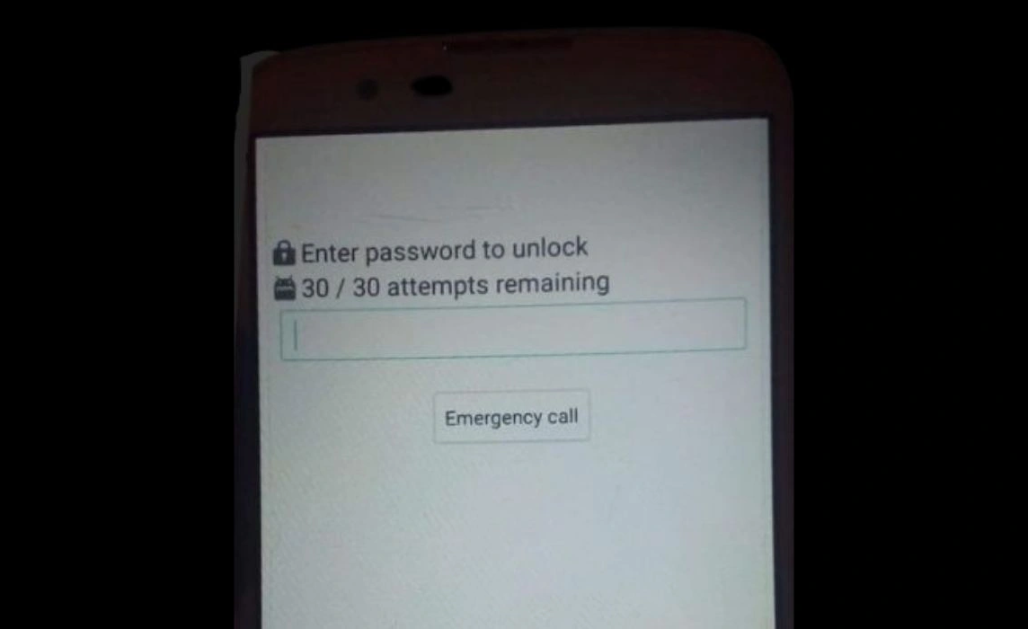
The “enter password to unlock 30/30 attempts remaining” message comes from a security system in your Android phone. This isn’t just a lock screen. It’s a key security barrier that keeps your encrypted data safe.
Secure Startup on LG and Older Android Devices
Secure Startup is a built-in protection feature found primarily on LG smartphones running Android 9 or below. This security layer works differently from regular lock screens. It activates during the boot process, before your phone is fully loaded. Your device demands authentication at startup rather than after the system is running. Without the correct password, you can’t access calls, messages, notifications, or alarms.
Boot-Level Encryption and Decryption Key Access
The core of this security system is boot-level encryption. Your phone’s data partition is completely encrypted, therefore requiring a special key to unlock it. During normal operation, this decryption key remains locked within your phone’s encryption layer. The password you enter at startup does more than unlock your screen. It also helps create the encryption key you need to access your files. Without the correct credentials, the system simply cannot decrypt your data.
Why the Message Appears Without User Setup
Many users report seeing this message despite never explicitly enabling Secure Startup. This occurs due to several reasons:
- System glitches or bugs that trigger the feature unexpectedly
- Automatic activation during encrypted backups or carrier updates
- The previous owner enabled the feature on second-hand phones
- Factory reset processes that reactivate screen lock protection
How the 30 Attempt Limit Works
The “30/30 attempts remaining” counter serves as a protection against brute-force attacks. Unlike newer phones that lock for 30 seconds after 5 failed attempts, older LG devices give exactly 30 tries before a permanent lockout. Furthermore, each incorrect attempt brings you closer to potential data loss.
Once all 30 attempts are exhausted, most devices will either:
- Lock permanently, requiring advanced recovery methods
- Automatically trigger a factory reset, erasing all data
- Require additional verification steps through the Google account
This security system stops unauthorized access, but it also brings challenges. The security check runs before the Android operating system loads.
Basic Fixes to Try Before Resetting Your Device
Looking at a locked screen with the message “enter password to unlock 30 30 attempts remaining” feels overwhelming. Don’t stress! I have simple solutions you can try first. There’s no need for drastic steps like a factory reset.
Wait for Timeout and Retry with Correct Password
Most Android devices implement a security timeout after multiple failed password attempts. This cooling period typically lasts between 30 seconds to 1 minute. Instead of frantically trying random combinations, take a deep breath and wait for the timeout to complete.
During this pause, carefully think about what your password might be:
- Special dates you commonly use for passwords
- Similar passwords are used on other devices
- Whether you included capital letters or special characters
Entering the wrong password too many times after the timeout can lock your device permanently. After the timeout expires, you’ll get another opportunity to enter the correct credentials.
Use Google Account Recovery After Timeout
After waiting through the timeout period, look for a “Forgot Pattern” or “Forgot PIN” option on your screen. This lifeline appears specifically after several failed attempts.
To use this method:
- Tap on the “Forgot Pattern/PIN” option when it appears
- Enter your Google account credentials linked to this device
- Follow the on-screen instructions to verify your identity
- Regain access to your device after successful verification
This method only works if you’ve linked your Google account to your device before. Also, your phone needs an active internet connection via Wi-Fi or mobile data.
Enter Backup PIN or Pattern If Available
Many older Android devices, especially LG models, allow using a backup PIN or password as an alternative unlocking method. This feature was common on previous Android versions, although newer models have removed this option.
After the timeout ends, check if your device shows an option for entering a backup PIN. If available, tap on it and enter the correct backup credentials you set up previously. This straightforward approach can save you from more complex recovery methods or data loss.
For Samsung Galaxy users, the backup PIN option shows up after about five wrong pattern tries.
Advanced Methods to Regain Access to Your Phone
When basic troubleshooting fails, these more powerful methods can help you regain access to your locked device.
Factory Reset via Recovery Mode (Power + Volume Down)
For devices displaying “enter password to unlock 30 30 attempts remaining” with no other options, a factory reset might be your only choice. To access recovery mode:
- Power off your device completely
- Press and hold the Power + Volume Down buttons simultaneously until you see the bootloader screen
- Use volume buttons to navigate to “Recovery Mode” and select with the power button
- Navigate to “Wipe Data/Factory Reset” and confirm
Remember, this method erases all data on your device. Backup whenever possible first.
Unlock Using Google Find My Device
If your device is connected to the internet, Google’s Find My Device service offers a lifeline:
- Visit findmydevice.google.com from another device
- Sign in with the Google account linked to your locked phone
- Select your device and choose “Lock”
- Set a new temporary password to override the current lock
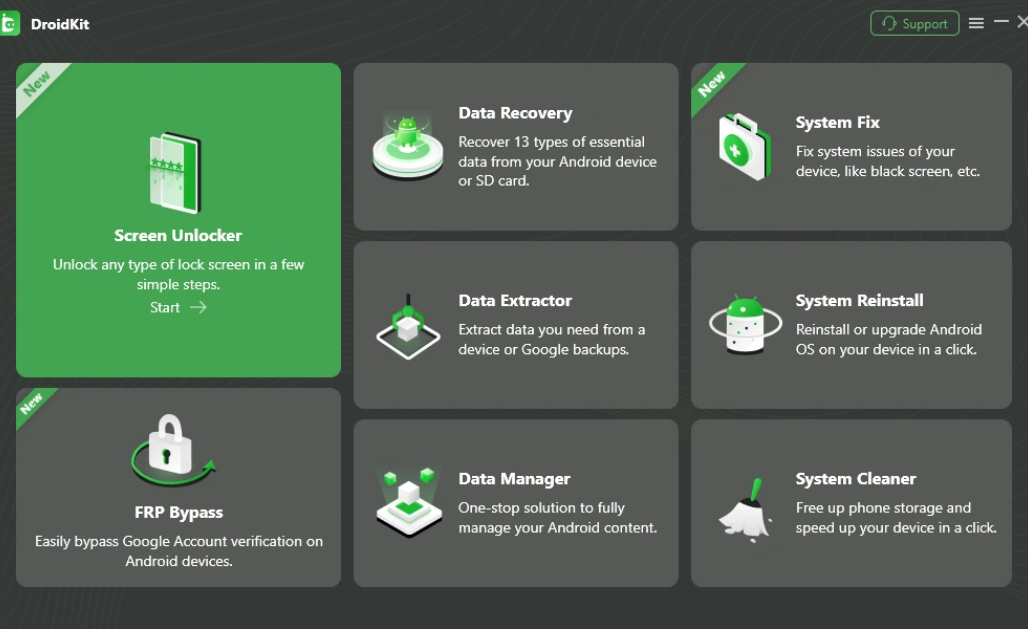
Bypass Lock Screen with 4uKey or DroidKit
Third-party tools like 4uKey or DroidKit can unlock Android devices with high success rates:
- 4uKey removes screen locks on over 60,000 Android models in minutes
- DroidKit works on most common brands, including LG
Both tools require connecting your phone to a computer via USB.
Handling FRP Lock After Factory Reset
Factory Reset Protection (FRP) might activate after reset, requiring Google account verification:
- FRP is enabled by default on Android 5.1+ devices
- To bypass, you’ll need the Google account originally linked to the device
- Professional bypass tools exist, but they may void the warranty
If you’re the rightful owner and forgot your credentials, reach out to your manufacturer’s support. Make sure to have your proof of purchase handy.
How to Prevent the Error from Happening Again
After fixing the dreaded “enter password to unlock 30/30 attempts remaining” issue, take steps to ensure it never returns. Here are four effective prevention methods for your Android device.
Disable Secure Startup in Android Settings (If Available)
On LG phones, go to Settings. Then tap General, Lock Screen & security, and Encryption & Credentials. Finally, choose Secure Startup and select “No” to turn it off. This option typically exists on Android 9 and older devices. However, be aware that Google has removed this ability on Android 13 devices. For most Android phones, you’ll need to input your current PIN before making this change.
Use Different PINs for Lock Screen and Startup
Using separate passwords for your lock screen and startup encryption adds an extra security layer. This way, if someone discovers your lock screen PIN, they won’t automatically know your startup password. Think of it like having different keys for your front door and your safe.
Store Credentials in Google Password Manager
Google Password Manager securely saves your passwords across all devices where you’re signed in. This tool automatically signs you into sites and apps using saved credentials. Access it via:
- Android settings
- Chrome browser
- passwords.google.com
Your saved passwords remain protected with industry-leading encryption to reduce data breach risks.
Enable Smart Lock or Biometric Unlock Options
Smart Lock (renamed “Extend Unlock” in newer versions) keeps your device unlocked in trusted situations. Configure your phone to remain unlocked when:
- Connected to trusted Bluetooth devices like your smartwatch
- At specific locations such as your home
- While you’re carrying it (on-body detection)
Biometric options, including fingerprint scanning, offer both security and convenience. They also remove the need to type passwords over and over. This cuts down the risk of forgetting important credentials.
Conclusion
FAQs
Q1. How many attempts do I have to unlock my Samsung phone before it locks?
Samsung devices typically allow five attempts to enter the correct PIN, password, or pattern. After five failed tries, a “Reset with previous screen lock” option shows up. You have 72 hours to use your old credentials or to set new ones.
Q2. Is there a universal master code to unlock Android phones?
No, there isn’t a universal master code for unlocking Android phones. Each device’s security is unique to protect user data. If you’re locked out, use the recovery methods for your device. You can also contact the manufacturer for help.
Q3. How can I disable the screen lock on my Android device?
To disable the screen lock, open your phone’s Settings app. Tap on Security. If asked, enter your current PIN, pattern, or password. Then, choose “None” as the lock option. Remember that this removes all protection for your device.
Q4. What should I do if my phone says my password is incorrect when I’m sure it’s right?
First, try restarting your device. If the issue persists, you might be accidentally mistyping the password or may have set it incorrectly. Double-check for caps lock, special characters, or typos. If problems continue, you may need to use account recovery options.
Q5. How can I prevent being locked out of my Android device in the future?
To avoid future lockouts, consider using biometric unlock options like fingerprint or face recognition, enabling Smart Lock features, storing your credentials in Google Password Manager, and setting up a backup PIN. Also, regularly update your recovery information linked to your Google account.